~Guide to Using Neovim
This guide provides essential tips and commands when using Neovim. Instead of spending time searching for specific commands, you can find the most important ones right here. These commands can be customized in your nvim setup but most of them are defualt, and most of them are customed to my taste. Check my setup
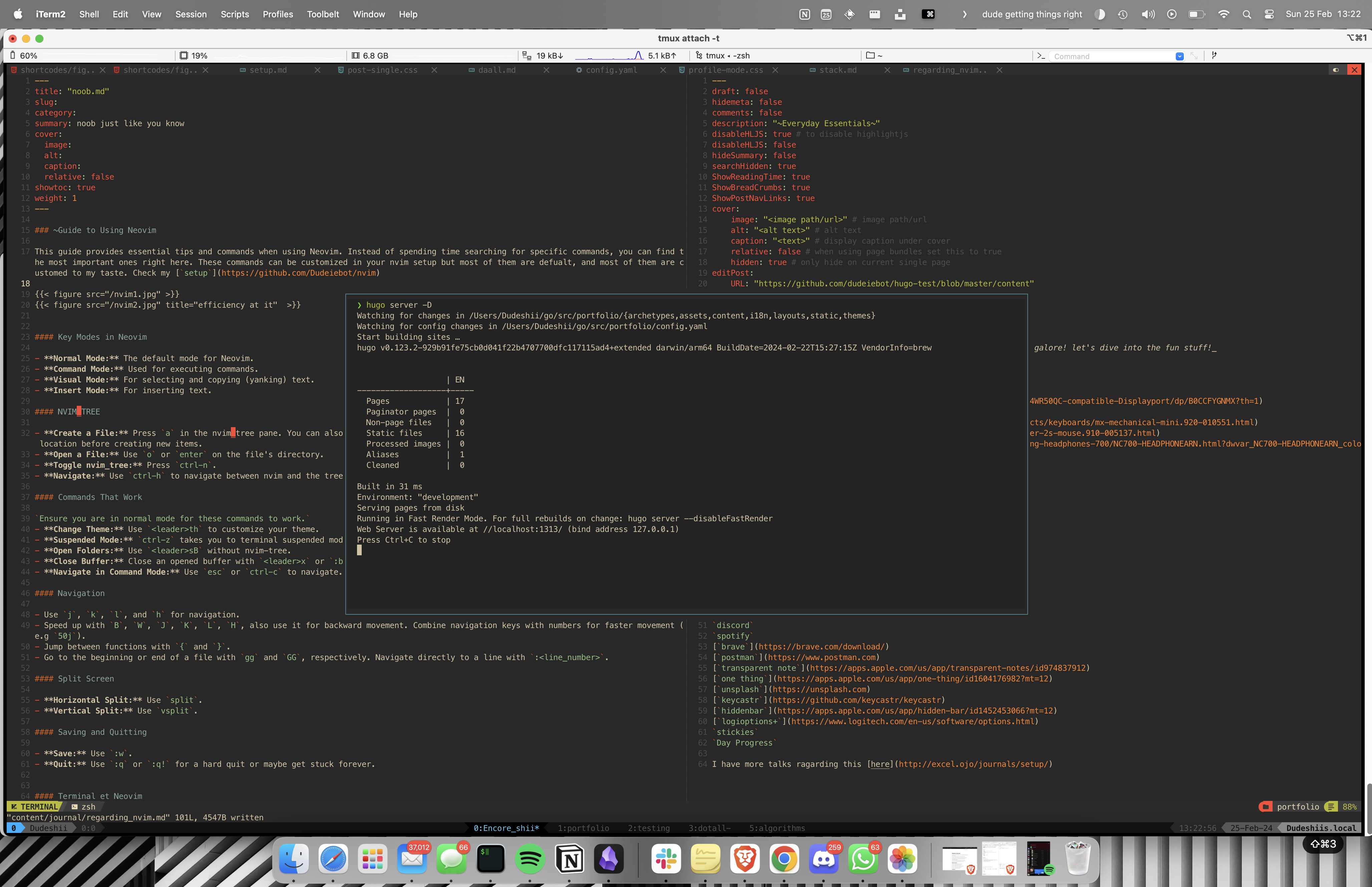
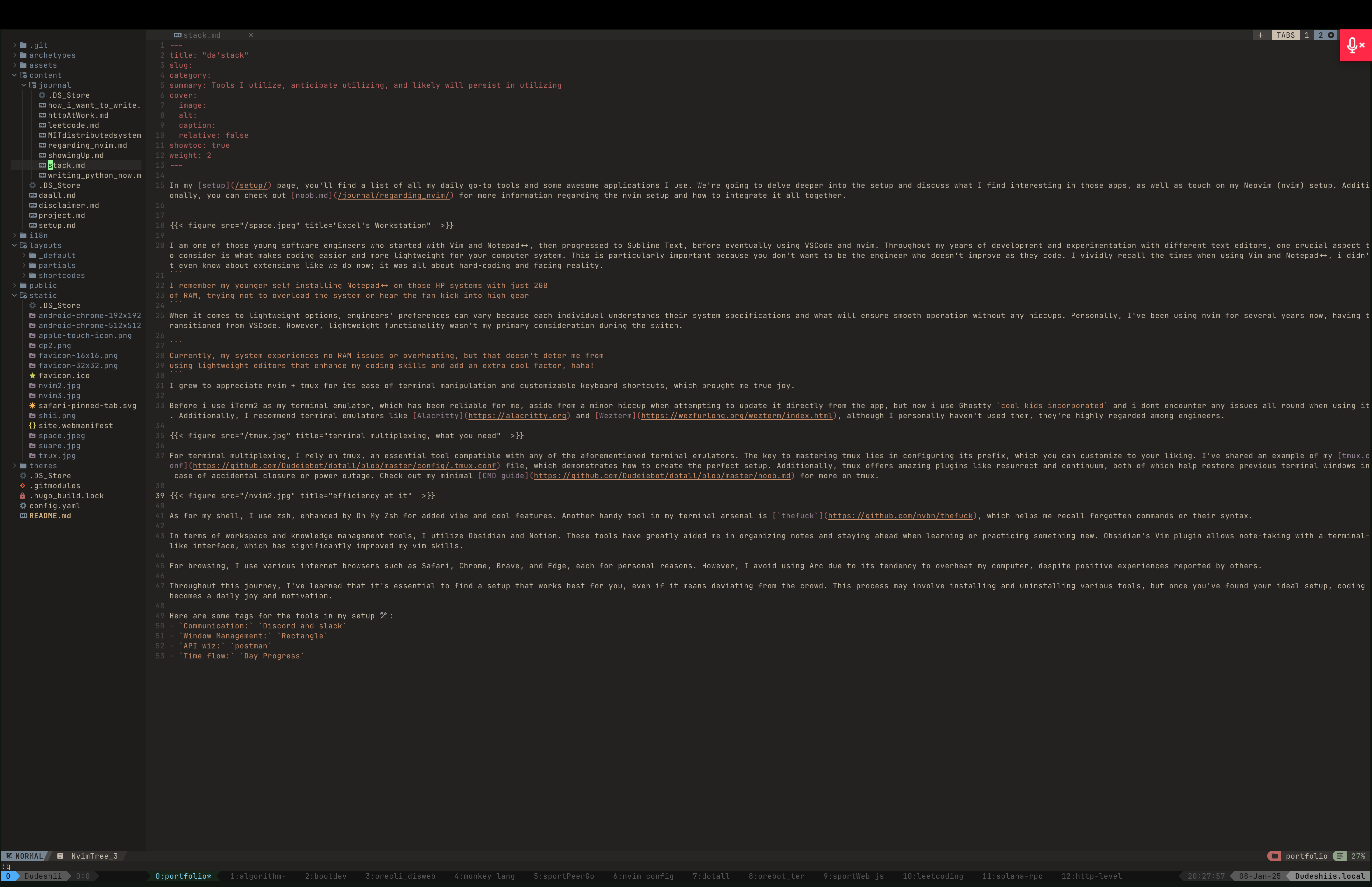
efficiency at it
Key Modes in Neovim
- Normal Mode: The default mode for Neovim.
- Command Mode: Used for executing commands.
- Visual Mode: For selecting and copying (yanking) text.
- Insert Mode: For inserting text.
NVIM_TREE
- Create a File: Press
ain the nvim_tree pane. You can also create folder by adding\at the end of the name. Ensure you check the location before creating new items. - Open a File: Use
oorenteron the file’s directory. - Toggle nvim_tree: Press
ctrl-n. - Navigate: Use
ctrl-hto navigate between nvim and the tree pane.
Commands That Work
Ensure you are in normal mode for these commands to work.
- Change Theme: Use
<leader>thto customize your theme. - Suspended Mode:
ctrl-ztakes you to terminal suspended mode. Usefgto return to your buffer. - Open Folders: Use
<leader>sBwithout nvim-tree. - Close Buffer: Close an opened buffer with
<leader>xor:bd. - Navigate in Command Mode: Use
escorctrl-cto navigate.
Navigation
- Use
j,k,l, andhfor navigation. - Speed up with
B,W,J,K,L,H, also use it for backward movement. Combine navigation keys with numbers for faster movement (e.g50j). - Jump between functions with
{and}. - Go to the beginning or end of a file with
ggandGG, respectively. Navigate directly to a line with:<line_number>.
Split Screen
- Horizontal Split: Use
split. - Vertical Split: Use
vsplit.
Saving and Quitting
- Save: Use
:w. - Quit: Use
:qor:q!for a hard quit or maybe get stuck forever.
Terminal et Neovim
- Open Terminal: Use
ctrl-tfor a floating terminal,<leader>hor<leader>vfor horizontal or vertical splits. - Show Opened Terminals: Use
<leader>pt.
Macros
- Record a Macro: Press
qfollowed by the key you want to save the command sequence to. End recording withqand replay the macro with@followed by the key.
Searching
- Use
/to search within the file. Navigate through instances withn(forward) andN(backward).
CMD on the go
- Yanking a line with
yy, yanking a word withye, yanking matching sequence withy%. zzto centre your cursor.- Deleting a line with
dd, deleting a word withde,deleting matching sequence withd%. - If you want to Change the same words(let say in a json file), use
shift ;which displays some certain strings that can follow this patterns/word you want to change/new word. - Go to definitions, use
ctrl-] - Use
gcorgdfor comment out a line of code. - Switch between lowercase and uppercase with
~. - Use
.to repeat the last action. *for checking instances where word are used in the file and moving through all highlighted wordsofor taking you below a new line andOfor taking you above a new line, also you get to be in insert mode also.xdelete a letter, and you can add nos to the back also for more deleting.- Use
rto replace a letter,Rfor replacing multiple letters. - Highlight lines fully with
shift-vand the curly brackets. - Indent with
<or>. Atakes you to the end of the line,0takes you to the beginning of a line and capitalItakes to the beginning and putting in insert mode.%comes in handy in between brackets to flip around them, you can move from the bracket opening{to the bracket close}with the sign, or around other brackets also.- Use
ctrl-ofor navigating to the last opened file andctrl-ifor navigating backward, so the later can be called backward navigation.
Talks
An easy way to remember d as Delete and c as Change, w as Forward and b as backward, t as to and f as find, b as beginning and e as end.
For real this are just normal english, like d 2 w called delete 2 word will practically delete 2 word.
dt and ct followed by the lettering or symbol you want to delete can be helpful also, it will equally delete of change to the side.